
Lucky Ones casino app: mobile access, installation and login
The Lucky Ones casino app described here is a browser-installed web experience: games and account features can be accessed through a mobile browser, and the web app can be installed through supported browser or site menus on a phone or desktop. The installation steps below cover that confirmed browser workflow on iOS, Android and desktop. This page covers device-specific installation, how browser access differs from a saved entry point, mobile sign-in and password recovery, and a short troubleshooting sequence for common access problems.
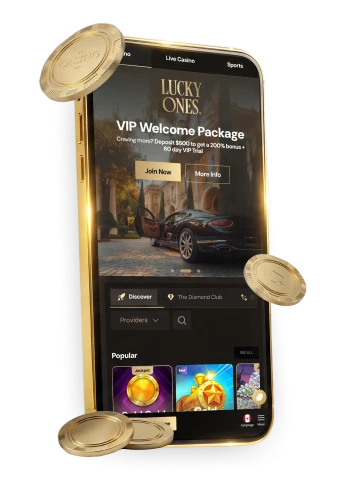
Lucky Ones mobile access and browser compatibility
Lucky Ones casino games are mobile-friendly and can be launched directly from the casino home page in a phone or tablet browser, without installing the web app first. The Canadian mobile browser route supports games, bonuses and withdrawal requests. Those are browser capabilities, not a promise that every game renders or performs the same way on every device.
Mobile performance still depends on the device and browser in use. If a page stalls, check the connection and whether a browser update is available. Rendering and speed can vary between phone models and operating system versions; a mobile-friendly game is not a guarantee of identical performance everywhere.
Without a saved icon, the LuckyOnes casino remains available in a phone or tablet browser, where mobile-friendly games can be opened directly. Installation remains optional for readers who want a saved entry point rather than a browser tab.

Lucky Ones casino app download and browser installation
The Lucky Ones casino app download route documented here is browser installation, not a standalone file download. The option depends on the device: iOS and Android use browser menus, while desktop installation uses Download from the casino navigation menu. Installing adds an entry point to the web experience; mobile browser access works without it.
- On iOS, open the browser Share menu and choose Add to Home Screen.
- On Android, open the browser menu and choose Install or Add to Home Screen.
- On desktop, choose Download from the navigation menu, then select Install.
Once added, the LuckyOnes app icon provides a home-screen or desktop entry point to the browser-based web experience. The browser handles the phone installation; the documented steps do not call for a separately distributed app file. On desktop, Download is in the casino navigation menu before Install. On phones, the relevant choice is in the browser menu, not the cashier or account settings. Menu wording can vary by browser version, so use the installation choice applicable to your device and the browser version currently installed.
Browser access versus an installed web app
Opening the casino in a mobile browser and using a saved icon are two ways to reach its web experience. The icon changes how you open it; it does not add a separate account or a second game catalogue. If you only want to check whether the mobile page loads, you can start with a browser tab.
The Canadian mobile browser interface supports games, bonus access and withdrawal requests in most browsers. Browser capability does not guarantee the same performance on every device or connection.
A bookmarked tab and a browser-installed LuckyOnes entry point offer different ways back to the site without changing the browser access described above. Installation is device-specific: adding an icon on one phone does not add it to another. The iOS Share route and Android Install/Add to Home Screen route apply to the device being used; desktop has its own Download > Install route. None of those installation steps is needed to open the mobile site in a browser tab.
Logging in and recovering account access on mobile
Signing in on a phone uses the credentials for the existing account. Installing a browser shortcut does not create another account or replace the sign-in screen; it only changes how the browser-based page is opened.
To reset a forgotten password, open Log In and select Forgot Password?, then follow the reset link sent by email. If that email account is inaccessible, contact customer care by live chat or email to regain access.
If Log In opens but you cannot remember the password, use the email reset route rather than reinstalling the web app. Access to the account email matters for that route: when the email cannot be accessed, customer care is the documented next contact.
Before entering credentials through a saved entry point, confirm that it opens the intended address. Keep LuckyOnes casino sign-in details private; the home-screen icon is another way into the browser-based account, not an alternative account.
A browser-installed entry point does not replace the account sign-in route. If your browser offers to save a password, that is a browser setting rather than a separate Lucky Ones account. Sign-in and password recovery remain account tasks whether you opened the site from a tab or a saved icon.
Troubleshooting mobile access and account checks
A short diagnostic sequence is worth trying before contacting support when a mobile browser does not load Lucky Ones correctly.
- Check the device connection, then reload the page.
- Close and reopen the browser, and check for an available browser update.
- If the issue continues, try another browser or contact support by live chat or email.
Support is available 24/7 by live chat or email for problems that persist after these steps; no email response time is specified. Keep the issue type clear when escalating it. If the page itself fails to load, describe the browser and connection checks already tried. If the page opens but sign-in fails because the password is forgotten, use the email reset route first. If the browser and login both work but a cashout remains pending, verification or security review may be the relevant account process instead of a mobile-access fault.
If a saved shortcut is labelled lucky one casino, verify its destination before entering credentials; the label alone does not confirm the intended account page.
A mobile loading problem is different from a withdrawal delay. Verification is required before a first cashout, and routine account checks may also request verification later. A withdrawal may be held while verification, security or anti-fraud review is completed. Those account checks are independent of whether the page opened from a browser tab or a saved icon, so reloading or reinstalling browser access does not complete the review through the documented account process. A verification or security hold can extend lucky ones casino withdrawal time, whether you opened the account from a browser tab or a saved icon.
Frequently asked questions
How do I install Lucky Ones on a phone?
On iOS, use the browser Share menu and choose Add to Home Screen. On Android, use the browser menu and choose Install or Add to Home Screen. Both routes add browser-based access through the supported device menus.
How can I reset my password on mobile?
Open Log In and select Forgot Password?, then use the reset link sent by email. If that email account is inaccessible, contact customer care by live chat or email.
Can a mobile cashout be held for checks?
Yes. Verification is required for a first cashout, and individual withdrawals may also undergo a security or anti-fraud review that holds the payout while checks are completed; no specific processing time is guaranteed.